On-call
Use On-call to turn production signals into incidents, verify alert delivery, assess investigation evidence, request fix pull requests, and resolve incidents safely.
View as MarkdownOn-call watches the errors, uptime checks, and alert rules recorded by Monitoring. It opens an incident for a new or returning problem, attaches an investigation note and timeline, and notifies the channels appropriate to the incident's severity. When you request a fix, it opens a reviewable pull request; a person always decides whether to merge or deploy.
#When to use On-call
Use On-call when a production problem should become a tracked incident rather than only another row in Monitoring. It gives your team one place to check what broke, whether anyone was notified, what evidence was gathered, and what remains unresolved.
On-call needs Monitoring and an active plan. It is available on every plan, including Free.
#Turn on and configure On-call
Connect production signals
Follow Monitoring to send errors and create any uptime checks or alert rules you want On-call to watch.
Choose channels and the issue threshold
Open Settings → Automatic → On-call. Select Slack, email, or iMessage, and set Open an incident for to warnings and errors, errors, or fatal errors only. Only channels already connected to your team can deliver alerts.
Verify the team switch
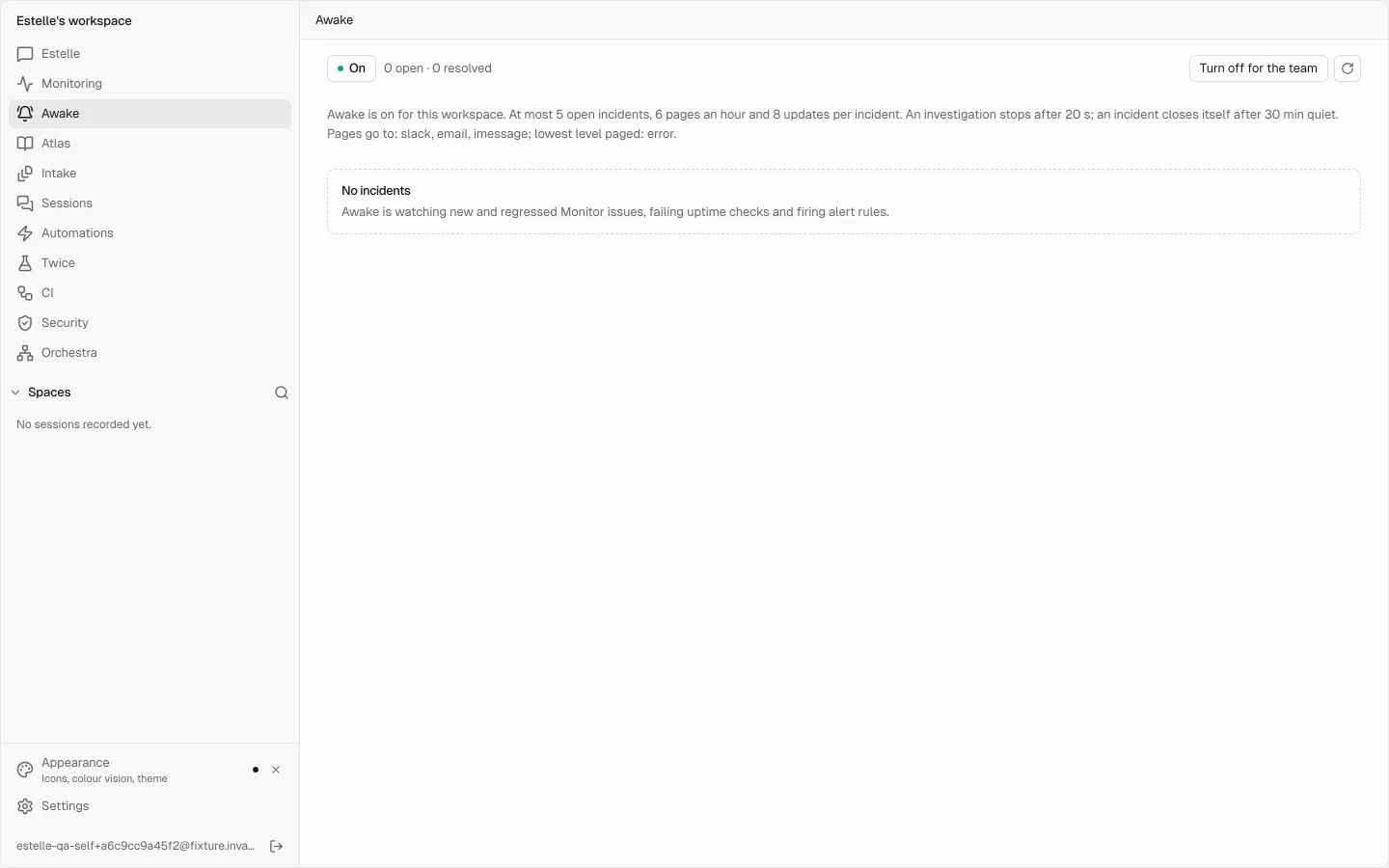
Open On-call and confirm the header says On. If it is off, choose Turn on for the team. The settings rows show the selected channels, threshold, severity routing, and current limits.
Turning On-call off stops new investigation and notification for the workspace. The existing incident record remains available to read.
#What opens an incident
| Source | Incident condition | Typical severity |
|---|---|---|
| Monitoring issue | A recent open issue at or above the configured level is new since On-call started watching, or a resolved issue has regressed. | Fatal or critical: Sev1; error: Sev2; warning: Sev3 |
| Uptime check | An enabled check has completed a probe and is recorded down. | Sev1 |
| Alert rule | A threshold alert is currently firing. | Sev2 |
Issues that already existed when On-call started watching are backlog and do not create a flood of incidents; they need a regression to open one. A check that has never completed a probe is unknown and opens nothing. New-issue alert rules do not create a second incident for the issue that already covers the same event.
Repeated activity for the same open subject updates its incident rather than opening a duplicate.
#Understand alert severity and delivery
Severity controls notification routing; it is not a measure of how certain the investigation's suspected cause is.
| Severity | Where a new incident goes |
|---|---|
| Sev1: critical | Every selected, supported channel right away: Slack, email, and iMessage. |
| Sev2: serious | Slack right away when selected, plus an email summary at most once an hour when email is selected. |
| Sev3: minor | The On-call dashboard only. |
Updates and resolutions thread under the original Slack or iMessage message. They are not sent as new emails. Repeated email for the same subject is also held back during a cooldown; the incident timeline records routing and withheld delivery.
An incident can exist even when no immediate alert was sent. Always read the incident's Pages section: delivered means the channel accepted the message, while not delivered means it did not. Do not assume someone was woken because an incident appears in the list.
#Respond to an incident
Confirm the signal and notification
Open the incident from the On-call list or the link in an alert. Check its source, subject, severity, phase, opened time, and delivery records. If delivery failed or was withheld, notify the responder through another channel.
Assess the investigation note
Read What broke, Since, Blast radius, Most likely cause, and Confidence, then inspect Evidence and What the investigation did not reach.
The most likely cause is a lead from the recorded evidence, not proof of causation. Low confidence or skipped evidence calls for direct inspection of the issue, logs, traces, uptime result, and recent changes in Monitoring.
Choose and verify the response
For a Monitoring issue incident, choose Open fix PR if you want Estelle to prepare a repair. Uptime- and alert-rule incidents do not have a code-fix action; address their failing endpoint or rule condition directly.
If your team turns on Let on-call open a draft pull request in Repair settings, a checked fix opens as a draft pull request on its own. Its description states the confidence, the evidence, and how it was checked; many of these fixes could not be reproduced first, so read it as a lead. The setting is off by default. A production error can come from anyone who can reach your service, so a draft branch may run your CI on code a model wrote from that error.
Review the pull request and its recorded check result, run the relevant tests, and have a person merge it. Opening the PR does not merge or deploy it. Each incident can have one fix PR.
Close only when handled
Choose Close incident after the immediate condition is handled or you have deliberately taken ownership elsewhere. Record the operational follow-up in your normal incident process. Closing to silence a page does not fix the underlying service.
The timeline remains the incident's operational record: trigger, investigation, routing, pages, fix updates, and resolution. Use it to reconstruct what happened rather than relying on the latest status alone.
#How incidents resolve
An incident resolves automatically when:
- the issue is marked resolved or ignored;
- its fix pull request merges;
- its uptime check recovers; or
- its alert stops firing.
The resolution is added to the same incident timeline and any existing Slack or iMessage thread. You can also close an incident manually. A later regression can open a new incident for a problem that had resolved.
An issue with no new errors for 30 minutes goes Quiet, not fixed. That is not a resolution: the issue stays open in Monitoring, and the next occurrence reopens the same incident. Each subject sends at most one channel notice every 6 hours, however often it comes and goes.
#Limits that affect response
| Limit | Effect when reached |
|---|---|
| 5 open incidents per account | Additional triggers are counted as withheld. Continue triage in Monitoring and close handled incidents. |
| 6 new pages per hour | Incidents still open, but further immediate pages are withheld and the timeline says so. |
| 8 follow-up messages per incident | The dashboard timeline remains the complete place to inspect later activity. |
| 20-second investigation budget | The note lists evidence or steps the investigation did not reach. |
| One fix PR per incident | Review the existing PR instead of starting another repair for the same incident. |
The On-call header shows these bounds and the email-routing windows for your workspace. On-call investigation itself is not billed. Repair work you request uses Estelle Credits like other repair work; see Plans and credits.